Deploy an Instance
Creating an Instance
Instances are Virtual machines created from a template or ISO.
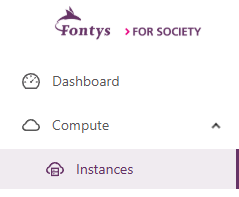
to deploy an instance choose Compute > Instances from the left menu in Educloud panel and select “Add Instance”
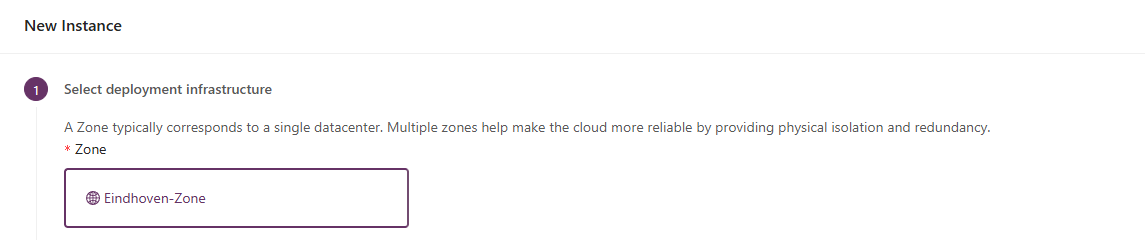
The Zone is already pre-filled based on the location of EduCLoud.
Choose a template or ISO. Templates are prepared and optimized images for the EduCloud environment.
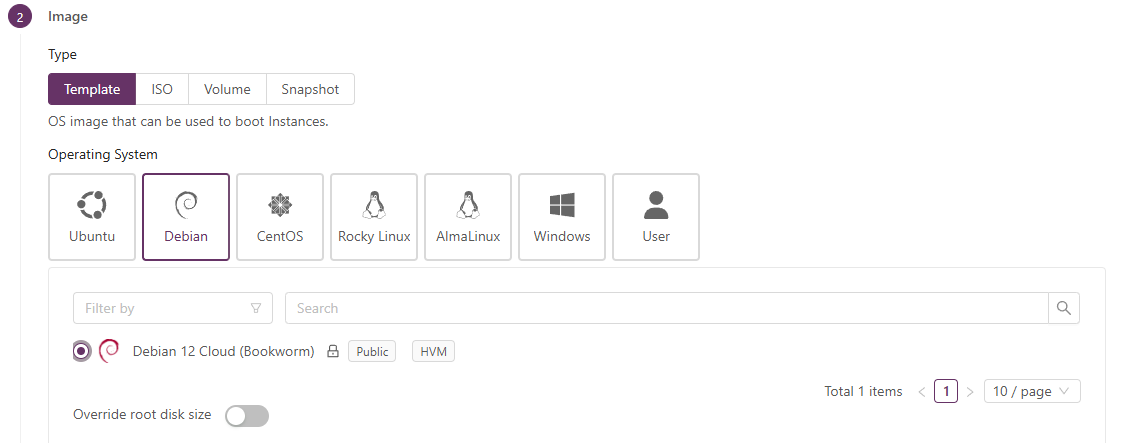
when selecting an Image the current resources for this image are displayed on the right side of the screen.
Compute Offerings
Choose an offering to assign the CPU and Memory needed for the selected image.
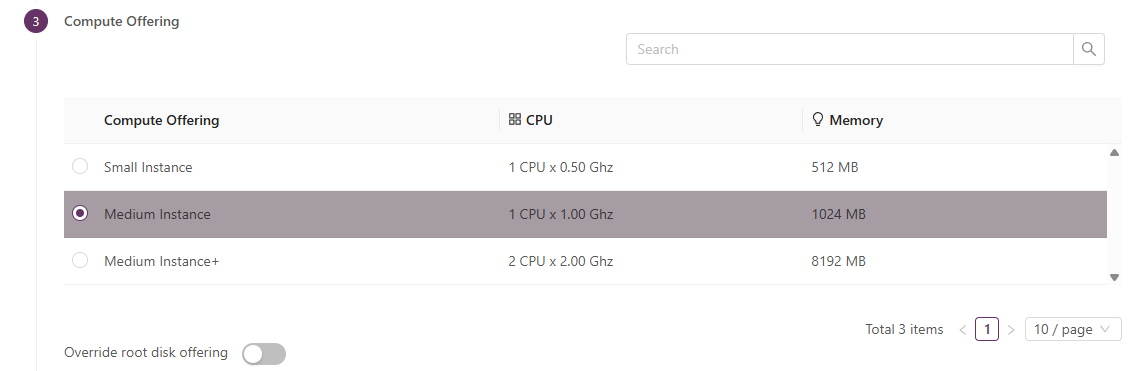
if needed the root disk size can be adjusted with the “Override
root disk offering” you can choose one of the available Disk offering.
The current root disk size can be viewed on the right side of the
screen. 
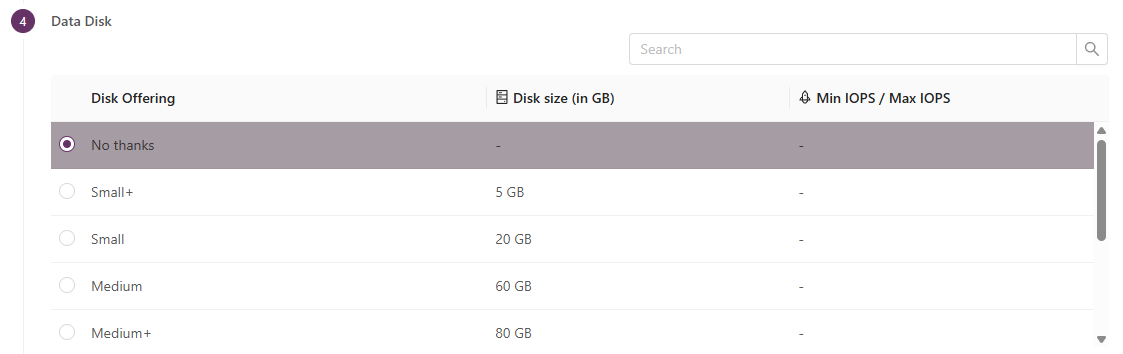
Second Disk Offering
When needed a second disk (Data Disk) can be assigned to the image this optional and most of the time not needed.
Network Offering
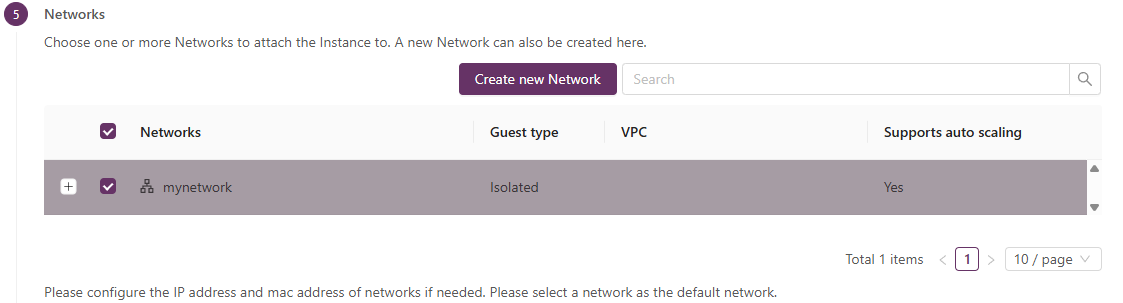
Choose a *Network* in which the server will be deployed. If the network does not exist you can create a new network with the “Create new Network” button. For more details see the “how to create a new network” section in the manual.
SSH KeyPair
To associate an SHH key pair to the server that is, if you created an SSH Key pair under the Compute section. select the key pair. If not, leave it blank.

Enter a name and click “Launch virtual Machine” After the server is deployed a random password will show up in the panel if the chosen template is configured with "password set".
Instance Name
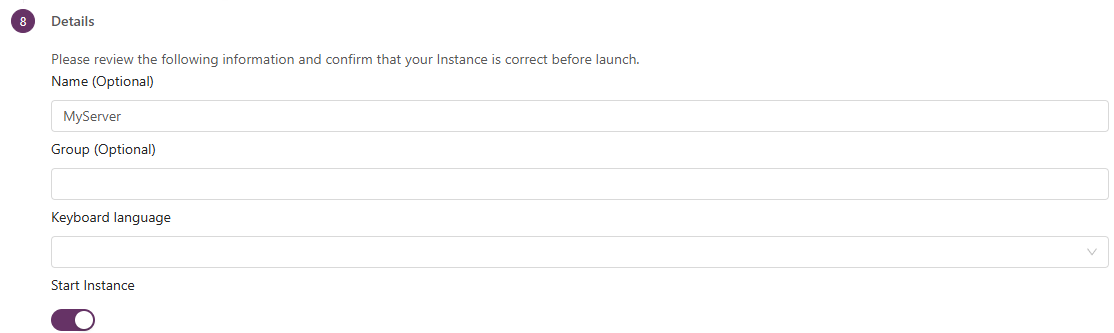
when no name is given a random name will be assigned. Also noted that a name can contain:
ASCII letters ‘a’ trough ‘z’ the digits ‘0’ trough ‘9’, and the hyphen (‘-’), must be between 1 and 63 characters long and can’s start or end with “_” and can’t start with a digit.
Note: the default login name is the same as the distribution of the selected template.
         for example:

         when choosing the template debian the default username is debian

         when choosing the template Rocky Linux the default username is rocky

         when choosing the template ubuntu the default username is ubuntu
Once the instance is deployed to an isolated network, you can configure egress and ingress rules if needed. See the documentation: setting up the firewall