Firewall
Firewall Overview
When deploying an instance in an isolated network, the public IP addresses are managed by the virtual router. The virtual router can be used to provide services such as ingress and egress rules, load balancing, and NAT.
Egress Rules
When deploying a newly created instance in an isolated network, there are no egress rules configured by default. If you have chosen the default offering “Offering for Isolated Networks with Source NAT Service and Default Egress Policy Enabled,” internet access from inside the network to the outside will be allowed by default.

However, if you have chosen the offering “Offering for Isolated Networks with Source NAT Service Enabled,” you need to create an egress rule to allow internet access.

Therefore, to enable internet access for the instance, you must create an egress firewall rule.
Go to the left menu and select Network > Guest Network and select your isolated network.
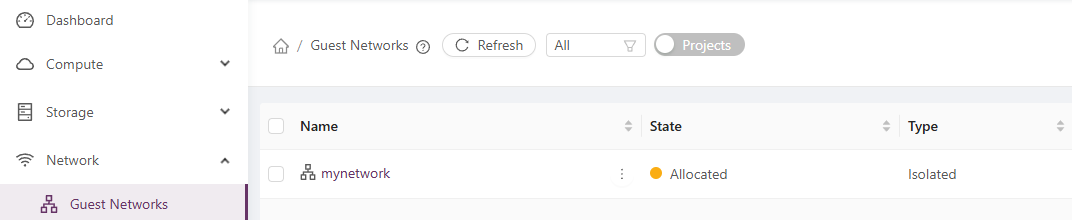
Select the Egress Rules tab and fill in as show in the screenshot below.
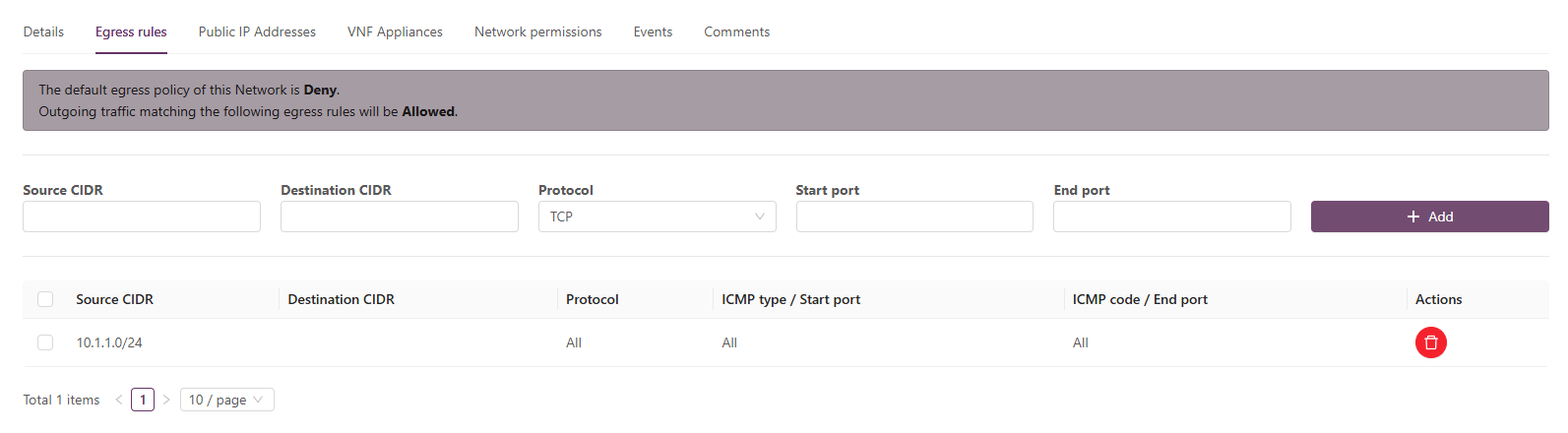
Tip: If you use 0.0.0.0/0 when specifying the source CIDR, EduCloud will automatically populate the correct CIDR.
Ingress Rules
To configure ingress traffic, firewall rules can be set on the “Public IP Addresses” tab to allow incoming connections.
- In the *“Firewall”* tab, rules can be configured to control which traffic is permitted.
- In the “Port Forwarding” tab, connections from remote computers can be facilitated. For example, you can forward the HTTPS port to allow access to a web server.
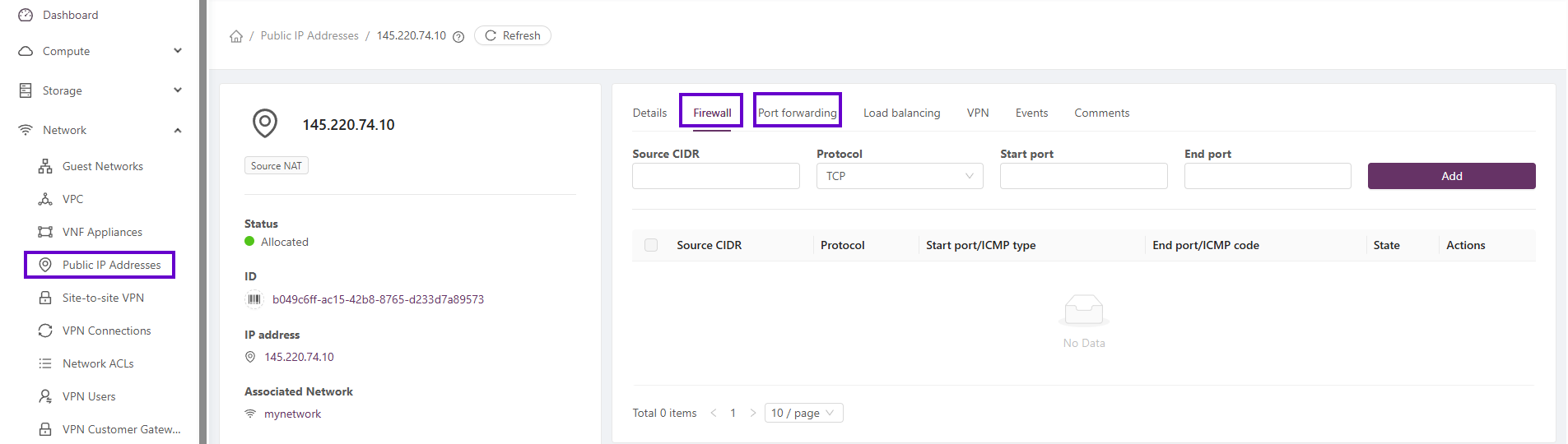
example
Too allow external https access to a webserver first open the https port on the firewall.
- leave source port blank if everyone on the internet is allowed to access the firewall on HTTPS.
- In the field "Protocol" choose TCP
- enter 443 in the "start port", if "End Port" is blank it automatically use the value of the "start port".
- the "start port" is the beginning of a port range for a firewall rule.
- the "End port" is the end of that range.
- select "Add"

After the HTTPS port has been opened on the firewall, we need to add a rule for port forwarding to the web server. The port forwarding maps a public port to a private port on a specific instance:
- In the Public Port, specify port 443 that you want to expose externally.
- In the Private Port, specify 443, which it will be mapped to.
- Specify TCP for the Protocol.
Add the instance and select the target server where the port should be mapped.
