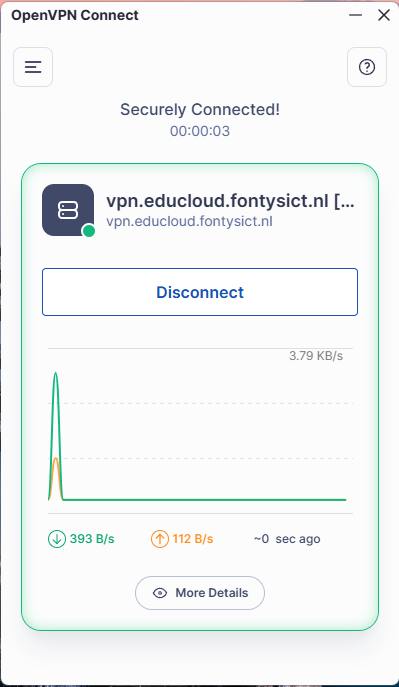
OpenVPN
OpenVPN is a Virtual Private Network (VPN) service. It provides a secure and encrypted connection that extends a private network across a public network, such as the internet, by routing traffic through an encrypted tunnel. When connected, it appears as if devices are part of the same private network. A VPN connection enhances privacy and security by protecting your online activities from hackers, ISPs, and other third parties. In essence, a VPN acts as a middleman between your device and the internet.
OpenVPN installation
When you are using EduCloud and have one of the IP addresses assigned from the private IP range for internet connectivity, it will not be possible to reach your instance from the outside. You will only be able to establish connections from the inside to the outside. When an instance, such as a web server, needs to be accessible from outside the network, a true public IP address is required.
Fortunately, it is possible to directly access your instance by using a VPN connection.
Private IP Range
- 10.0.0/8
- 172.16.0/12
- 192.168.0.0/16
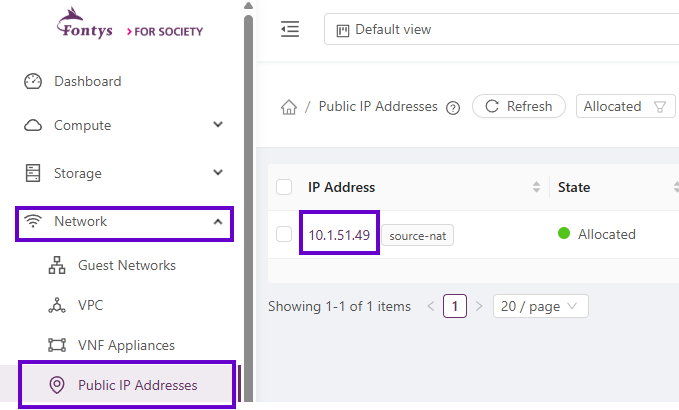
To make sure is you have on of the Ip addresses in the Private IP Range.
- In the left menu select Network.
- Click on Public IP Addresses.
- Under IP Address you wil see you assigned IP Address.
You will need a VPN client to access your environment from outside the network, without using the console option in the EduCloud portal. The VPN client can be downloaded from the download page available in the portal.
- From the navigation menu, select Downloads or click Downloads Page
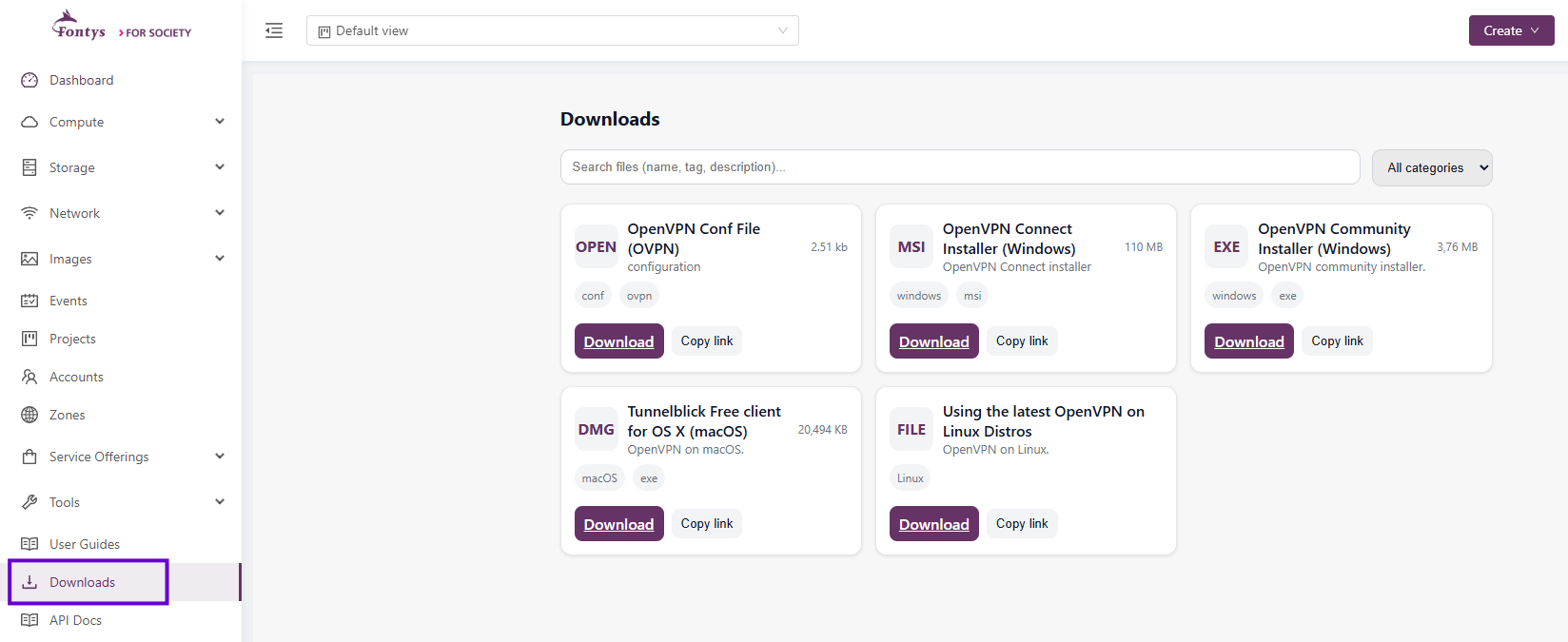
Download the OpenVPN client of your choice. (in this case, OpenVPN Connect Setup). ** Note: You also need to download the configuration file which must be imported after the installation **
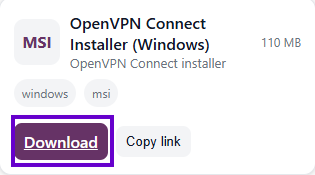
after downloading the OpenVPN Client:
- start the setup wizard bij clicking the downloaded file.
- click Next and accept the license agreement.
- Click Install to begin the installation.
- after installing click Finish.
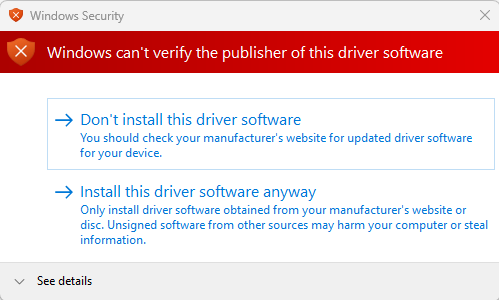
Note: If the following message appears, select "Install this driver software anyway"
After finishing, OpenVPN Connect is available.
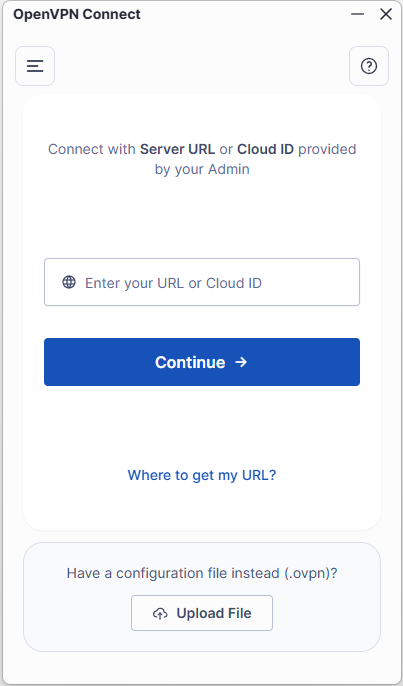
OpenVPN Configuration
After installation, you must import the configuration file to connect to EduCloud.
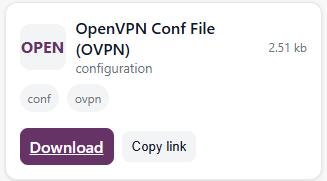
- From the navigation menu, select Downloads or click Downloads Page
- In the OpenVPN client select the Upload File button.
- select the configuration file you just downloaded.
- Click Import.
- Once the configuration file is imported, you can connect to the EduCloud VPN by clicking Connect.