Managing Project
Overview
Projects are used to organize people and resources. EduCloud users within a single domain can form project teams to collaborate and share virtual resources such as instances, snapshots, templates, data disks, and IP addresses. All resources created within a project belong exclusively to that project, not to any individual account.
Adding a Project
The account that creates the project is assigned as the project owner. You can add additional accounts to the project and also assign other accounts as project owners. To add a new project, perform the following steps:
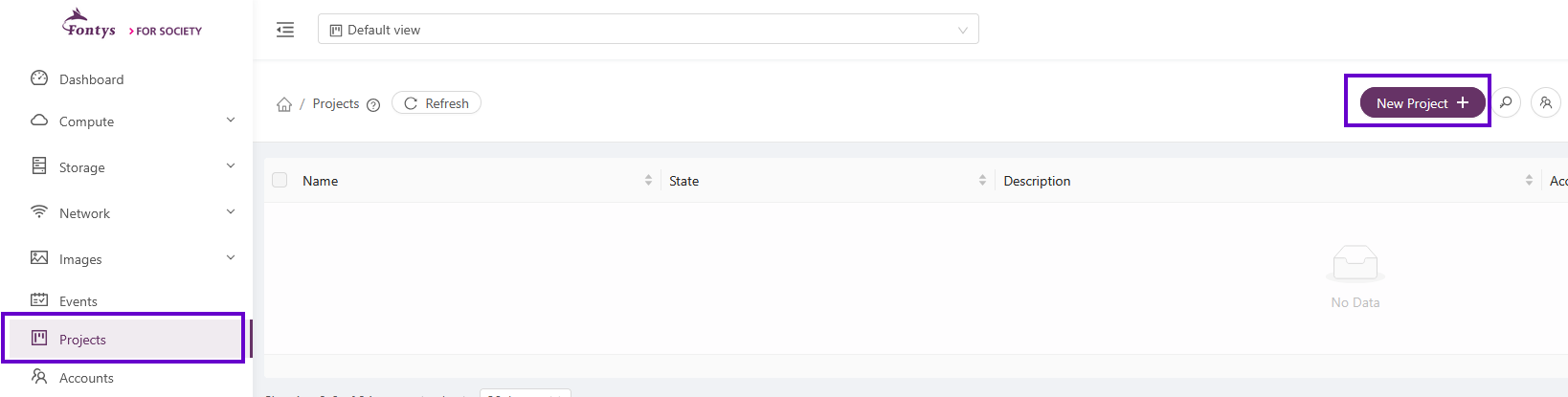
- In the left-hand menu, click Projects.
- Click the Add New Project button.
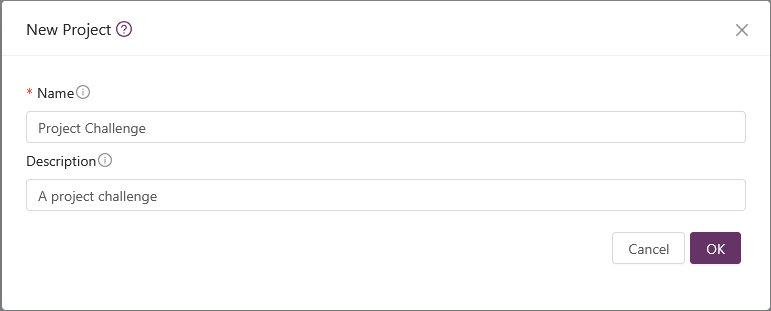
a new dialog box appears. enter a name and an optional discription for the project.
After the project is created, it will be displayed in the project list.

Add account to Project
You can invite additional members to a Project.
- Click the name of the project you want to work with.
- Click the Add Account to project button in the top-right corner.
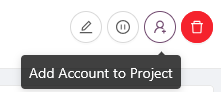
Within the Add Account dialog box, you can invite accounts that are members of the same domain. To invite someone, enter the account you wish to add (you must know the user's i-Account to invite them).
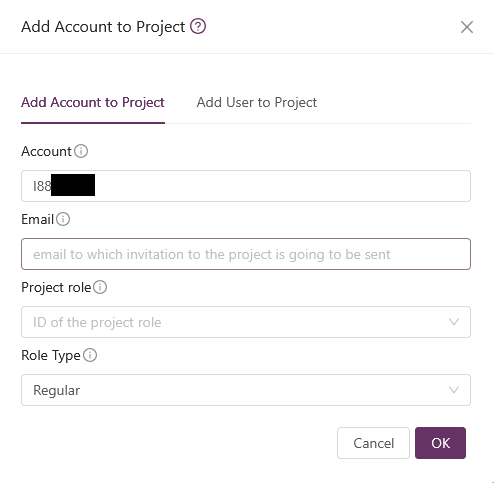
After entering the name of the account you want to add to the project, click OK.
Note! the invitation will be valid for one day. when the invitation expires a new invitation need to be created.
Accepting an invitation
When an account is invited to join a project, a marker will appear under Projects in the left navigation menu.
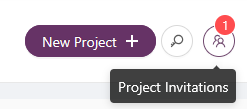
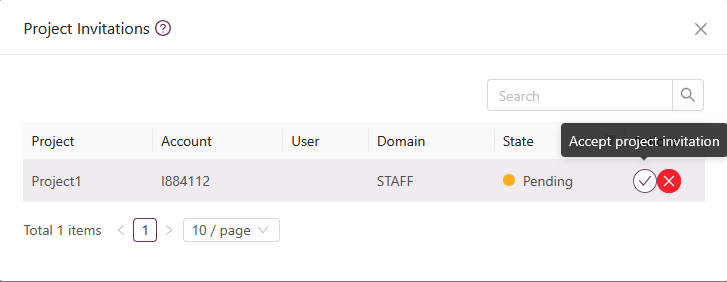
You can now choose to accept or decline the invitation to join the project.
Selecting a Project View
A single account can be associated with multiple projects. After logging in, you can view all your projects and work with resources within a specific project.
- Log into the EduCloud UUI.
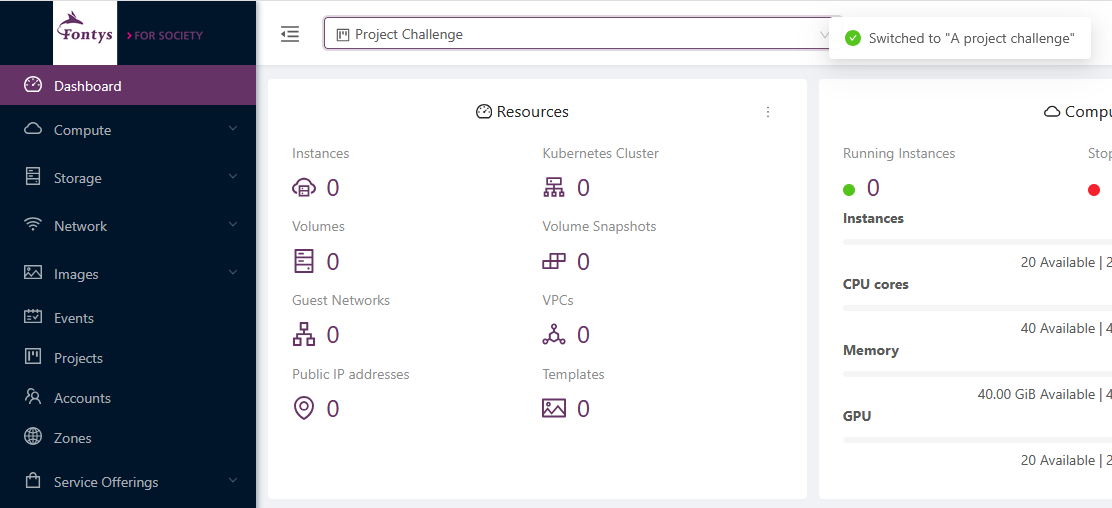
- Click Project view located on the top of the screen. a dropdown list displays the projects available.

- Select the project that you want to work with. The Portal UI changes to the display of the selected Project.