IP Addresses
What is an IP address?
An IP address is an address assigned to a device on a network. The device uses this address to communicate with other devices on the network. Each device has a unique IP address assigned and uses the Internet Protocol for communication.
There are two versions of IP addresses.
IPv4: The older format, written as four numbers separated by dots (e.g., 192.168.1.1). It uses 32 bits and can support about 4.3 billion addresses.
IPv6: The newer format, created because we ran out of IPv4 addresses. Written as eight groups of hexadecimal numbers separated by colons (e.g., 2001:0db8:85a3::8a2e:0370:7334). Uses 128 bits, providing vastly more addresses.
Private vs Public IP Range
A private range is a block of IPv4 addresses for use within a local area network (LAN) and is not routable on the internet. These ranges allow private networks to reuse the same addresses.
When connecting to the internet, Network Address Translation (NAT) translates the private IP address to a single public IP address.
For example: When a device has an IP address in the network 192.168.0.x/24 and connects to the internet, NAT translates the private IP address to a single public IP address (for example, 145.220.x.x). This way, all devices in the 192.168.0.x/24 network can share the same public IP address, so it is not required to assign each device a public IP address.
The three primary IPv4 private address ranges are:
- 10.0.0.0 – 10.255.255.255 (CIDR: 10.0.0.0/8): A large block of ~16.7 million addresses.
- 172.16.0.0 – 172.31.255.255 (CIDR: 172.16.0.0/12): A medium block of ~1 million addresses.
- 192.168.0.0 – 192.168.255.255 (CIDR: 192.168.0.0/16): A smaller block of ~65,536 addresses.
Do i have a Private or Public IP address?
To check in EduCloud whether your virtual router has a private or public IP address, follow these steps:
- In the left navigation menu, choose Network.
- Select Public IP Addresses.
Note: If you need a public IPv4 address, you can submit a request here: Topdesk
Change Your IP Address
- In the left navigation menu, choose Network.
- Select Guest Networks.
- Click Public IP Addresses.
- Select + Acquire New IP.
Choose a free IP address from the list. If a free public IP address has been assigned to your account, it will also be available in this list.
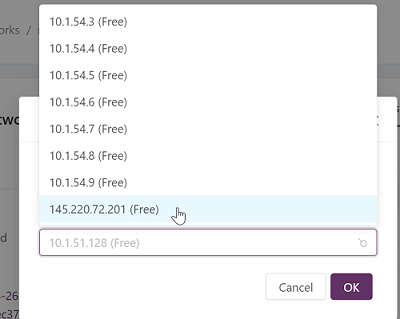
Click OK to finish. A new IP address will be assigned.
Note: After the IP address has been assigned, the virtual router will be rebooted. This can take a minute.